Table of contents
Overview
Name
Tredict MCP ServerMCP Server Address
https://www.tredict.com/api/mcp/v2Transport Support
Streamable HTTP and SSEAuthentication
The Tredict MCP Server supports two authentication methods:
- OAuth2.1 with PKCR and Client Credentials
- Personal API Token
Please refer to the main OAuth2 documentation for detailed information on how to authenticate and obtain access tokens.
Example Use Cases
The Tredict MCP (Model Context Protocol) Server enables LLM/AI systems to provide powerful assistance to endurance sports athletes and coaches through the following capabilities:
Training Plan Creation & Device Integration
Training Plan Creation and Training Planning
Analyze training history and current fitness levels to create extensive reusable training plans and structured workouts directly into Tredict within minutes and tailored to individual athlete needs and goals.
Device Integration
Tredict automatically uploads created plans and structured workouts to compatible sports watches, but only if applied by the user itself into the personal training calendar, through its extensive integrations with leading sports device manufacturers, ensuring athletes have their training programs readily available on their preferred devices. This closes the circle between AI, athletes and sports tracker manufacturers. Look up the list of supported training devices and manufactures.
Training Data Management
Title Optimization
Identify training sessions with poor or missing titles and suggest meaningful, descriptive names based on activity content, metrics, and context. This helps athletes better organize and retrieve their training history.
Capacity Value Assessment
Automatically determine and update key performance metrics such as:
- FTP (Functional Threshold Power) - Critical for cycling performance analysis
- FTPace - Functional Threshold Pace for running performance
- HRMax (Maximum Heart Rate) - Essential for zone-based training
- Lactate Threshold - Important for endurance training planning
These assessments are based on comprehensive analysis of recent training history, providing accurate and up-to-date performance indicators.
Training Analysis & Visualization
Historical Training Insights
Perform deep dive analysis of older training sessions with AI-powered insights including:
- Performance trends over time
- Training load and recovery patterns
- Progress toward specific goals
- Identification of strength and weakness areas
Memory Enhancement & Visualization
Utilize AI to reconstruct and picturize past training experiences by:
- Creating visual representations of training routes
- Generating descriptive summaries of key moments
- Highlighting personal bests and milestones
- Helping athletes relive and learn from their training journey
Training Period Comparison
Compare different training periods to gain valuable insights:
- Analyze year-over-year progress and performance trends
- Evaluate the effectiveness of training plan changes
- Track long-term development and set realistic future goals
Resources
Resources are assets and UI widgets that can be accessed through the MCP Server.
Tredict Logo
URI: mcp://tredict/assets/logo.svg
Name: tredict-logo
Title: The Tredict Logo
Description: Rectangular logo for light and dark themes
Mime Type: image/svg+xml
Tredict Logo with Slogan
URI: mcp://tredict/assets/logo-slogan.svg
Name: tredict-logo-slogan
Title: The Tredict Logo with Slogan
Description: Long logo with slogan and transparent background - Analytics for Endurance Athletes
Mime Type: image/svg+xml
Activity UI Widget
URI: ui://widget/activity-ui-066e07f905f7ef57bd95d6b664b9f745.html
Name: activity-ui
Title: Tredict Activity Details and Metrics UI Widget
Description: This widget displays standard metrics, time series data, laps, and a map of an executed activity. It provides a comprehensive view of activity details including heart rate, speed, power, and other metrics.
Mime Type: text/html;profile=mcp-app
Usage: This MCP App UI widget can be embedded in applications to show detailed activity information. Call it with an activityId to display the specific activity.
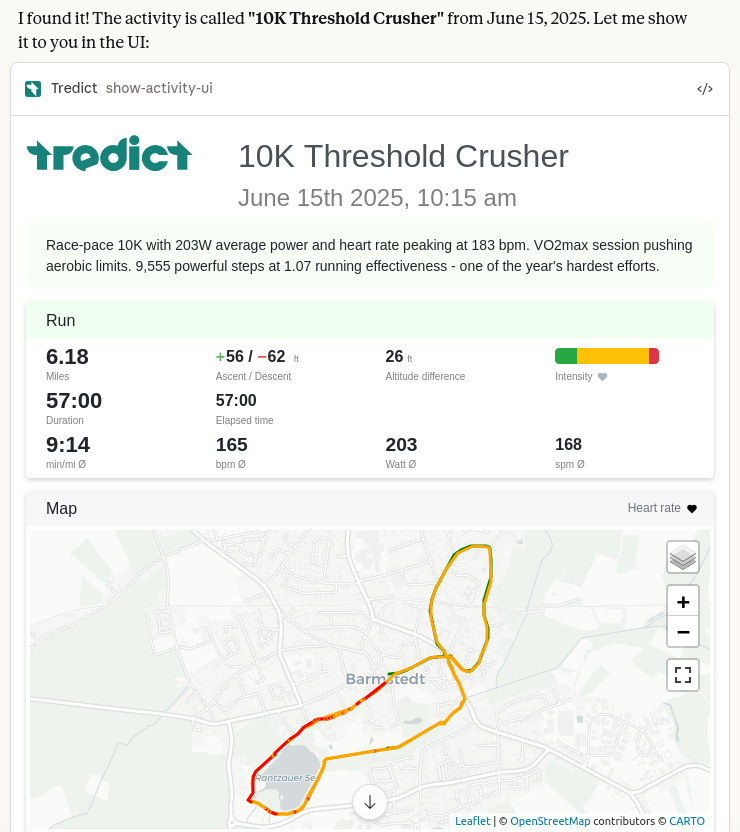
Tredict Show Activity UI MCP Widget embedded in the Claude chat
Plan UI Widget
URI: ui://widget/plan-ui-685ef5552c5d8c8c182a5da6b1efd974.html
Name: plan-ui
Title: Tredict Training Plan Details and Calendar UI Widget
Description: This widget displays a reusable training plan created in the user's 'My Plans' category. It shows the plan structure, individual workouts, and allows for calendar visualization.
Mime Type: text/html;profile=mcp-app
Usage: This MCP App UI widget can be embedded to show training plan details. Call it with a planId to display the specific training plan.
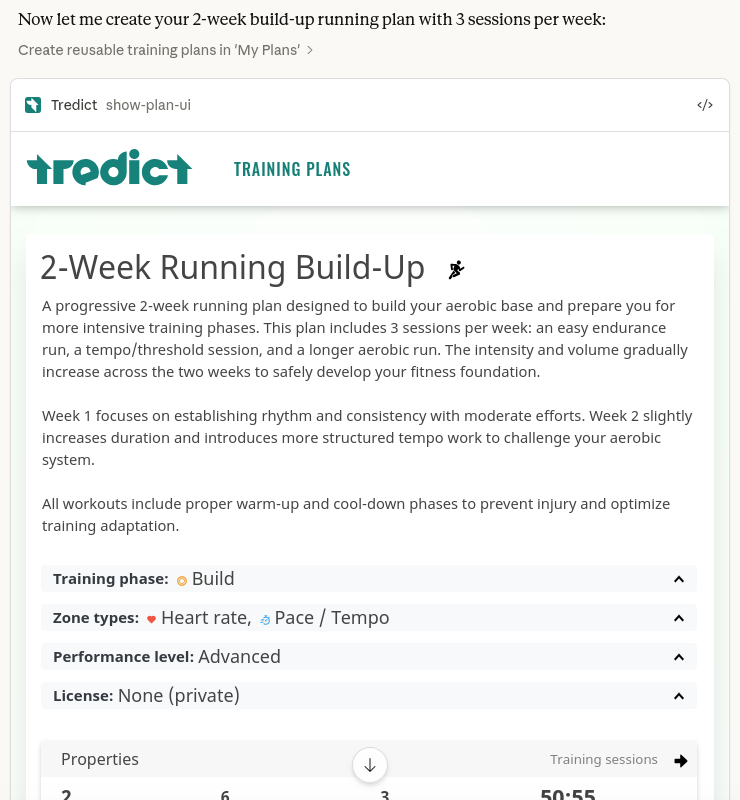
Tredict Show Plan UI MCP Widget embedded in the Claude chat
Prompts
Prompts are predefined tasks that can be executed on the Tredict MCP Server to perform specific analyses or actions.
Meaningful activity titles and descriptions
Name: better-names
Description: Find recent training sessions without good title and update them with meaningful titles and descriptions.
Arguments: None
Coolest training session
Name: coolest-training
Description: Look for the coolest training session from the given year in the Tredict activity list.
Arguments:
- year (required)
Compare years with in-depth analysis
Name: compare-years
Description: Compare one year with another of total training history and give an in-depth analysis.
Arguments:
- firstYear (required)
- otherYear (required)
Create a training plan based on training history
Name: create-plan
Description: Create a reusable training plan in Tredict by analyzing the recent training history and fitness level.
Arguments:
- monthsBack (optional)
- durationInWeeks (optional)
- workoutsPerWeeks (optional)
- sportTypes (optional)
- targetZonesTypes (optional)
Determine FTP
Name: determine-ftp
Description: Determine the current FTP (Functional Threshold Power) by analyzing the training history.
Arguments:
- sportType (optional)
In-depth analysis and assessment
Name: indepth-analysis
Description: Examine the entire recent 2 years of training history and create an in-depth analysis and assessment of the training status.
Arguments: None
Recreate a structured workout from an executed activity
Name: recreate-structured-workout
Description: Create an executable structured workout by analyzing the structure from an already executed activity.
Arguments:
- activityId (required)
Tools
Tools are functions that can be called to retrieve specific data or perform actions on the Tredict platform.
Activity List
Name: activity-list
Title: List executed activities for a date range
Description: List of already executed activities with activity summaries. If the 'pageSize' limit is reached in the result, there will be a 'nextCursor' in the pagination object. Call the next page with the nextCursor as startDate. Each 'activityList' entry contains at least the activity 'id', 'date' and 'sportType'.
Input Parameters:
- startDate (optional): Start date of the activity list in ISO format
- endDate (optional): End date of the activity list in ISO format
- pageSize (optional): Page size of activity list, default is 500, max is 1000
- extendedSummary (optional): Set to 1 to get extended activity summary
Annotations:
- readOnlyHint: true
- openWorldHint: false
Activity Details
Name: activity
Title: Activity details, extensive metrics and time series data
Description: Returns detailed metrics and time series for a single executed activity including position, speed, distance, altitude, heart rate, cadence, power, and more.
Input Parameters:
- activityId (required): The activityId that references a single activity
Annotations:
- readOnlyHint: true
- openWorldHint: false
Activity Update
Name: activity-update
Title: Update title and description of an activity (non-destructive)
Description: Update fields like 'title' or the 'notes' on a single activity or planned/scheduled workout. Always ask the user for confirmation before calling this tool.
Input Parameters:
- activityId (required): The activityId that references a single activity
- title (optional): Updates the title, max 255 chars
- notes (optional): Updates the notes, max 2048 chars
Annotations:
- readOnlyHint: false
- openWorldHint: false
- destructiveHint: false
Body Values
Name: bodyvalues
Title: Body values like weight, body fat, resting heart rate and more
Description: List of body values and health data represented by revisions over time. Possible metrics include restingHeartrate, hrRestDynamic, hrMaxDynamic, bodyHeightInCentimeter, weightInKilograms, bodyFatInPercent, bodyWaterInPercent, muscleMassInPercent.
Input Parameters: None
Annotations:
- readOnlyHint: true
- openWorldHint: false
Capacity Values
Name: capacity
Title: Capacity values like maximum heart rate, FTP and FTPa
Description: List of capacity values represented by revisions over time for each sportType. Possible metrics include hrMax, hrLth, ftp, ftpa.
Input Parameters:
- sportType (optional): Filter by sportType (running, cycling, swimming, misc)
Annotations:
- readOnlyHint: true
- openWorldHint: false
HRV Data
Name: hrv-list
Title: Heart Rate Variability data
Description: List of Heart Rate Variability data of the user. Each date tag contains a tuple where the first entry is the calculated HRV value (RMSSD during the night) and the second entry is the baseline over a course of 2 weeks.
Input Parameters:
- startDate (optional): Start date in ISO format
- endDate (optional): End date in ISO format, defaults to one year back
Annotations:
- readOnlyHint: true
- openWorldHint: false
Plan Creation
Name: plan-creation
Title: Create reusable training plans in 'My Plans'
Description: Call this to create a reusable training plan in the 'My Own Training Plans' category of Tredict. The plan can be applied to a custom start or end date in the user's training calendar.
Input Parameters:
- plan (required): Plan object with title, description, categories, targetgroups, zonetypes, language
- planTrainings (required): Array of training objects
- llmDescription (required): Brief description of the LLM model
Annotations:
- readOnlyHint: false
- openWorldHint: false
- destructiveHint: false
Plan Creation
Name: add-plan-trainin
Title: Add a single plan training to an existing plan
Description: Add a single planned training (structured workout) to a plan you created with the 'plan-creation' tool before. Use this tool to add the planned trainings by single tool call for each training to the training plan that should be build for the user.
Input Parameters:
- planId (required): This is the id of the training plan you would like to add a planned training to.
- planTraining (required): A planned training or structured workout that belong to the plan.
Annotations:
- readOnlyHint: false
- openWorldHint: false
- destructiveHint: false
Planned Workout List
Name: planned-workout-list
Title: List of planned structured workouts
Description: List of planned and scheduled trainings or structured workouts with fields like id, date, timezone, sportType, title, notes, distance, duration, executedTrainingId.
Input Parameters:
- startDate (optional): Start date in ISO format
- endDate (optional): End date in ISO format
- sportType (optional): Filter by sportType
Annotations:
- readOnlyHint: true
- openWorldHint: false
Planned Workout Details
Name: planned-workout
Title: Details and structure of a single planned workout
Description: Returns the details and structure of a planned structured workout in JSON.
Input Parameters:
- workoutId (required): Workout ID
- language (optional): Language code (de or en)
Annotations:
- readOnlyHint: true
- openWorldHint: false
Training Effort List
Name: training-effort-list
Title: Training efforts over time
Description: List of training efforts for a date range of all sportTypes. Each date tag contains an array for each training/workout with a tuple where the first entry is the calculated effort and the second entry has optional metadata like 'isRace'.
Input Parameters:
- startDate (optional): Start date in ISO format
- endDate (optional): End date in ISO format
Annotations:
- readOnlyHint: true
- openWorldHint: false
Zones Distribution
Name: zones-distribution
Title: Aggregated zones distribution
Description: List of aggregated zones distributions calculated by the time series data points activities have. The distributions are sorted by sportType and monthly date tag.
Input Parameters:
- startDate (optional): Start date in ISO format
- endDate (optional): End date in ISO format
- sportType (optional): Filter by sportType
Annotations:
- readOnlyHint: true
- openWorldHint: false
Zones
Name: zones
Title: Zone revisions
Description: List of zones represented by revisions over time for each sportType and zoneType (heartrate, pace, power, cadence).
Input Parameters:
- sportType (optional): Filter by sportType
Annotations:
- readOnlyHint: true
- openWorldHint: false
Show Activity UI
Name: show-activity-ui
Title: Tredict Activity Details and Metrics UI widget
Description: Shows standard metrics, timeseries, laps and a map of an executed activity by activityId.
Input Parameters:
- activityId (required): ID of the executed activity
Annotations:
- readOnlyHint: true
- openWorldHint: false
UI Widget: Yes
Show Plan UI
Name: show-plan-ui
Title: Tredict Training Plan Details and Calendar UI widget
Description: Shows a reusable training plan created in the users 'My Plans' category by planId.
Input Parameters:
- planId (required): ID of the reusable training plan
Annotations:
- readOnlyHint: true
- openWorldHint: false
UI Widget: Yes
Health data responsibility
Some tool responses, such as 'plan-creation', prompt the LLM to display health and responsibility/liability notices, where applicable. By registering with Tredict, the user or athlete gives their consent and takes responsibility for health-related applications and data by accepting the relevant topic in the Tredict Terms of Use.
Contact / Privacy
If you have any questions or need further assistance, please contact our support at support@tredict.com.
For privacy information, please refer to our Privacy Policy. Tredict is fully GDPR compliant and committed to protecting your data and privacy.
Media & Logos
For the visual integration on your side, you can find the Tredict logo and other media files on the media page.