Connect ChatGPT with Tredict
FAQ
-
Devices and Connections
- Which recording devices and services are supported?
- Export a planned workout to my Garmin device
- What is the difference between an automatically uploaded scheduled workout and a workout FIT file?
- Garmin Connect - How to connect and synchronize my device?
- Suunto - How to connect and synchronize my watch?
- Polar Flow - How to connect and synchronize my watch?
- Coros - How to connect and synchronize my watch?
- Wahoo - Connect and synchronize
- icTrainer - Using the Tredict training plan with the roller trainer
- Oura Ring - Connect and synchronise
- Does HealthFit transfer my Stryd data from the Apple Watch?
- Zwift - Automatically synchronise planned and completed workouts
- Zwift - Synchronise via Today's Plan
- Personal API - Connect your own scripts or personal applications
- Tredict API - Connect your platform or application
- Model Context Protocol and AI integration
- General
-
Training
- How to unlink a pre-planned workout?
- How to fix corrupt workout data?
- Correct a faulty recorded swim stroke
- Can I change the date and time of my workout?
- Can the laps of an activity be calculated manually?
- Can I display a run without the walking breaks?
- Why is the date of my virtual training in a different time zone?
- Supported sports
- Calendar and Training Overview
- Coaching and Athlete Connection
- Training plans
- Evaluation
- Zones
Note: Using ChatGPT with the Tredict MCP Server is currently considered experimental by Tredict.
LLMs are artificial systems that make mistakes and are no substitute for a trainer or your own mind.
LLMs are artificial systems that make mistakes and are no substitute for a trainer or your own mind.
Adding MCP servers to ChatGPT with a free ChatGPT account is currently not possible.
Follow these steps to connect the interactive Tredict MCP app to ChatGPT.
Add the Tredict MCP Server to ChatGPT
Go to"Settings -> Apps" and then click on "Advanced settings".Activate the
"developer mode".Go back to
"Apps" and click on the "Create app" Button.A modal window with a new app opens.
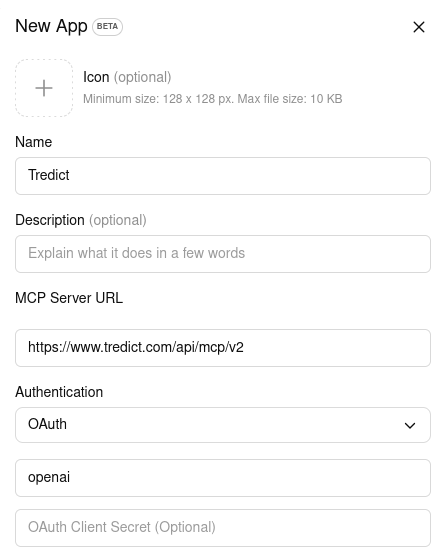
Fill in the fields as follows:
Name: Tredict
MCP Server URL: https://www.tredict.com/api/mcp/v2
Authentication: OAuth
OAuth Client ID: openai
OAuth Client Secret: You can simply leave this field blank.
"Create" to start the OAuth2 flow. You will be redirected to the Tredict authorisation page and, after successful authentication, back to the ChatGPT interface.You are now connected! In the ChatGPT input field, you can now either use Tredict via the
"Plus Button" clicked or simply use ChatGPT with "@tredict" in order to use the Tredict MCP tools.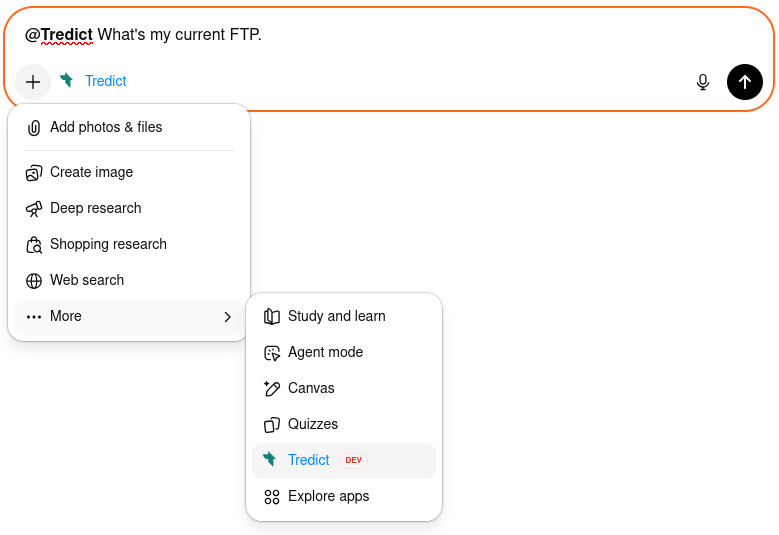
Example prompts for ChatGPT
Now you can use the ‘Tredict MCP Tools’ directly in ChatGPT, for example with these prompts:
"Determine my Functional Threshold Power (FTP) for cycling based on my training history."
"Show me my best training session from last month."
"Find training sessions without good titles, analyse them, and set better titles and descriptions in Tredict."
"Show me my best training session from last month."
"Find training sessions without good titles, analyse them, and set better titles and descriptions in Tredict."
Find detailed descriptions of the tools, prompts and resources of the "Tredict MCP Server" here: Tredict MCP Server Documentation.
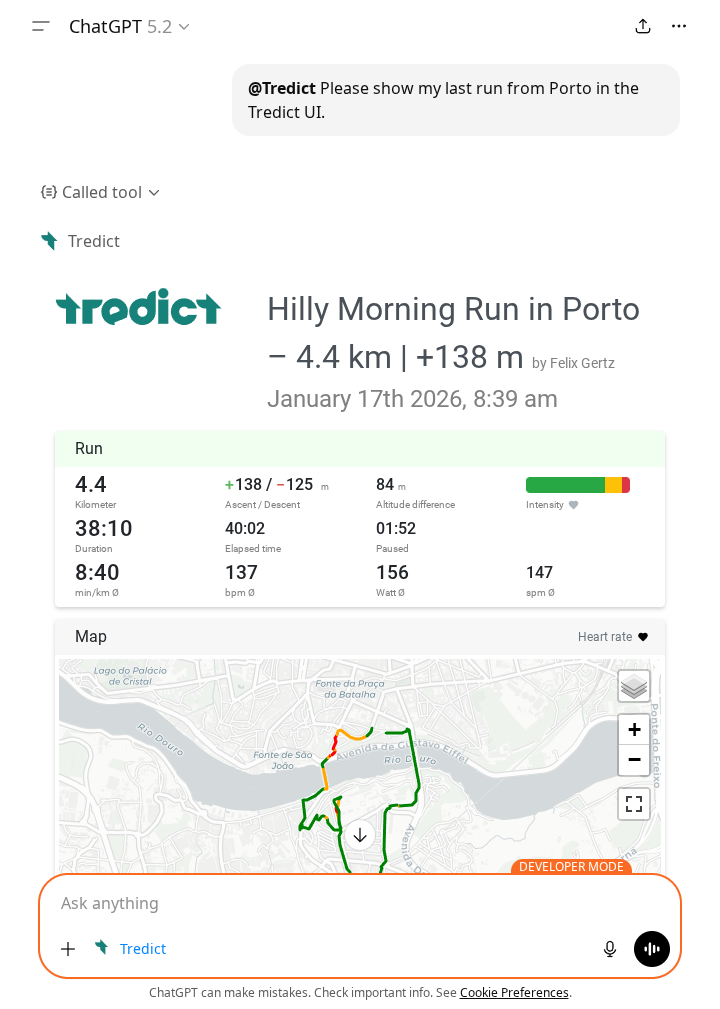
Example: ChatGPT displays the interactive MCP app for completed training sessions.
Next question:Connect Codex with Tredict
Previous question:Connect Claude Code with Tredict
Overview:View all questions