Connect Mistral Vibe with Tredict
FAQ
-
Devices and Connections
- Which recording devices and services are supported?
- Export a planned workout to my Garmin device
- What is the difference between an automatically uploaded scheduled workout and a workout FIT file?
- Apple Watch with Watchletic - Connect and synchronise
- Garmin Connect - How to connect and synchronize my device?
- Suunto - How to connect and synchronize my watch?
- Polar Flow - How to connect and synchronize my watch?
- Coros - How to connect and synchronize my watch?
- Wahoo - Connect and synchronize
- Hammerhead - Connect and synchronize
- icTrainer - Using the Tredict training plan with the roller trainer
- Concept2 - Connect and synchronise
- Oura Ring - Connect and synchronise
- Dropbox - Automatically sync training files with and from Tredict
- Zwift - Automatically synchronise planned and completed workouts
- Rouvy - Automatically synchronise planned and completed workouts
- Personal API - Connect your own scripts or personal applications
- Tredict API - Connect your platform or application
- Model Context Protocol and AI integration
- App, Browser and Platforms
- General
-
Training
- How to unlink a pre-planned workout?
- How to fix corrupt workout data?
- Correct a faulty recorded swim stroke
- Can I change the date and time of my workout?
- Can the laps of an activity be calculated manually?
- Can I display a run without the walking breaks?
- Why is the date of my virtual training in a different time zone?
- Series chart for distance intervals without pace
- Supported sports
- Calendar and Training Overview
- Coaching and Athlete Connection
- Training plans
- Evaluation
- Zones
Mistral Vibe comprises the Mistral Vibe Chat web interface and the Mistral Vibe Code CLI tool. Follow these steps to connect Mistral Vibe Chat or Mistral Vibe Code to the ‘Tredict MCP Server’.
- Connect Mistral Vibe Chat via the OAuth connector (recommended)
- Connect Mistral Vibe Chat via a Tredict access token
- Connect Mistral Vibe Code (CLI) to Tredict
Connect Mistral Vibe Chat via the OAuth connector (recommended)
In the ‘Vibe Chat’ web interface, go to ‘Context’ and click ‘Connectors’, then ‘Add connector’ and select ‘Add custom connector’.Enable the ‘OAuth2 Advanced Settings’ so you can enter the Client ID and Client Secret, then fill in the fields as follows.
Connector name: Tredict
Server: https://www.tredict.com/api/mcp/v2
Description: Analyse endurance sports activities, build training plans and sync structured workouts to your sports watch.
Authentication: OAuth2.1
Client ID: mistral
Client Secret: mistral
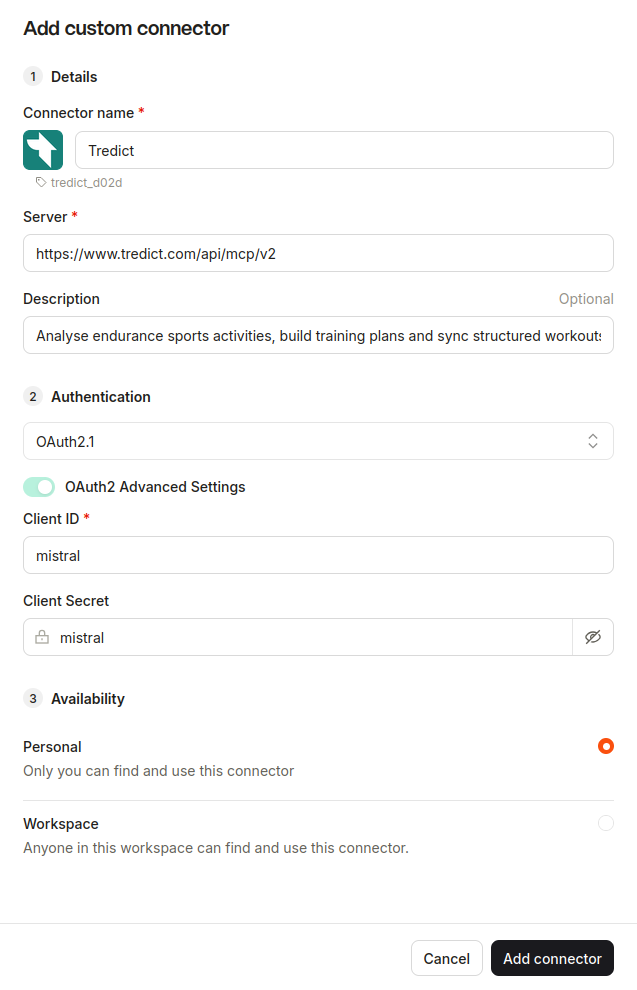
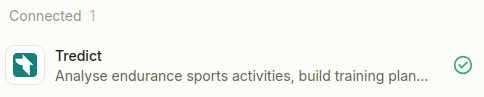
Click ‘Add connector’ to start the OAuth2 flow. You will be redirected to the Tredict authorisation page and, after successful sign-in, back to Vibe Chat.
Connect Mistral Vibe Chat via a Tredict access token
Alternatively, you can set up the connector with a personal access token instead of via OAuth.In the ‘Vibe Chat’ web interface, go to the ‘Context’ page by selecting this entry in the left-hand side panel.
Click on ‘Connectors’ and then on the ‘Add connector’ button.
Create a Tredict Personal API access token now in the Tredict app under Settings -> Personal API / MCP -> Access token.
Now you can fill in the fields under the ‘Custom MCP Connector’ tab as follows:
Connector Server: https://www.tredict.com/api/mcp/v2
Authentication method: API Token Authentication
Header name: Authorization
Header type: Bearer
Header value: [Insert your Tredict Personal API Access Token here]
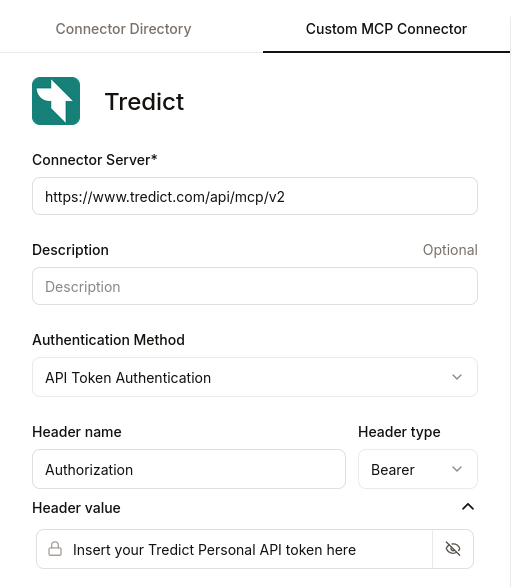
Voilà! You should now be connected.
Choosing the Tredict selector in Mistral Vibe Chat
Now select the Tredict selector in the Mistral Chat input field by clicking on the corresponding icon and selecting ‘Tredict’.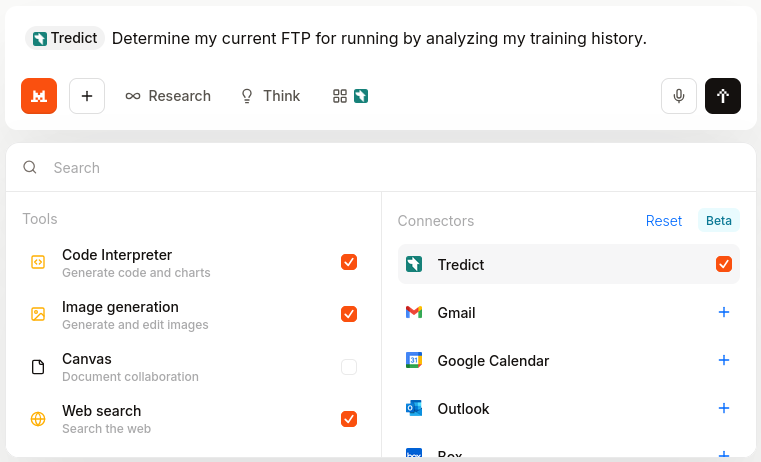
The Tredict selector has to be selected for Vibe Chat to use the Tredict MCP tools.
Example prompts for Mistral Vibe Chat
Now you can use the ‘Tredict MCP Tools’ directly in Mistral Vibe Chat, for example with these prompts:
"Please find recent training sessions without good titles, analyse them, and set a better title and description in Tredict."
"Analyse my training history and determine my functional threshold power (FTP) for running."
"Show me my best training session from last year."
Here you will find a list of Tredict MCP server tools, resources and prompts: Tredict MCP Server Documentation.
Example video: Setting better training titles with Mistral Vibe Chat
Connect Mistral Vibe Code (CLI) to Tredict
Mistral Vibe Code is the CLI tool, formerly Mistral Vibe. Follow these steps to connect it to the ‘Tredict MCP Server’.
Add the MCP server configuration to Mistral Vibe Code
Open the Mistral Vibe Code configuration file at~/.config/vibe/config.toml (Linux).Add the following ‘MCP Server Configuration’:
[[mcp_servers]]
transport = "http"
name = "remote-api"
url = "https://www.tredict.com/api/mcp/v2"
startup_timeout_sec = 15.0
tool_timeout_sec = 120.0
api_key_env = "TREDICT_PERSONAL_API_KEY"
api_key_header = "Authorization"
api_key_format = "Bearer {token}"mcp_server = [] or paste the configuration there.Create a Personal API key in Tredict at Settings -> Personal API / MCP -> Access Token.
Copy the API key and paste it into the file
~/.config/vibe/.env add:TREDICT_PERSONAL_API_KEY='your_personal_api_token'Restart Mistral Vibe Code.
Example prompts with Mistral Vibe Code
Now you can use the ‘Tredict MCP Tools’ directly in Mistral Vibe Code, for example with these prompts:
"Create a 4-week heart rate-based running training plan directly in Tredict. Each training session should include both duration and estimated pace. The plan should be relaxed, with 5 training sessions per week. Integrate a few runs with sprints and one easy interval session per week. Before creating the plan, analyse my training history and current capabilities to better assess my fitness level."
Here you will find a detailed description of the tools, prompts and resources of the ‘Tredict MCP Server’: Tredict MCP Server Documentation.
You can find more information on configuring Mistral Vibe Code in the Mistral Vibe Code documentation.
Example: Creating a training plan with Mistral Vibe Code
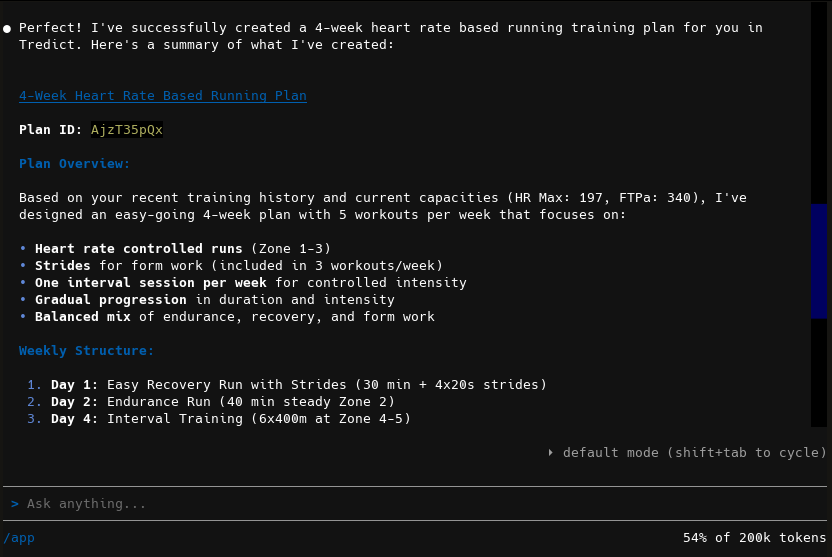
In the Mistral Vibe Code terminal, the Devstral 2 LLM creates a running training plan directly in Tredict.
Click on it to view it in detail.