Connect Grok to Tredict
FAQ
-
Devices and Connections
- Which recording devices and services are supported?
- Export a planned workout to my Garmin device
- What is the difference between an automatically uploaded scheduled workout and a workout FIT file?
- Apple Watch with Watchletic - Connect and synchronise
- Garmin Connect - How to connect and synchronize my device?
- Suunto - How to connect and synchronize my watch?
- Polar Flow - How to connect and synchronize my watch?
- Coros - How to connect and synchronize my watch?
- Wahoo - Connect and synchronize
- Hammerhead - Connect and synchronize
- icTrainer - Using the Tredict training plan with the roller trainer
- Concept2 - Connect and synchronise
- Oura Ring - Connect and synchronise
- Dropbox - Automatically sync training files with and from Tredict
- Zwift - Automatically synchronise planned and completed workouts
- Rouvy - Automatically synchronise planned and completed workouts
- Personal API - Connect your own scripts or personal applications
- Tredict API - Connect your platform or application
- Model Context Protocol and AI integration
- App, Browser and Platforms
- General
-
Training
- How to unlink a pre-planned workout?
- How to fix corrupt workout data?
- Correct a faulty recorded swim stroke
- Can I change the date and time of my workout?
- Can the laps of an activity be calculated manually?
- Can I display a run without the walking breaks?
- Why is the date of my virtual training in a different time zone?
- Series chart for distance intervals without pace
- Supported sports
- Calendar and Training Overview
- Coaching and Athlete Connection
- Training plans
- Evaluation
- Zones
Alongside Claude and ChatGPT, Grok is one of the few user-facing MCP hosts that show interactive, embedded MCP apps directly in the chat history. Once you connect Grok to the ‘Tredict MCP Server’, your activities, maps and analyses appear as an interactive ‘Tredict MCP App’ right inside the response, not just as text.
All of this already works with a free Grok account.
Follow these steps to connect Grok to the ‘Tredict MCP Server’ and the ‘Tredict MCP App’.
Add the Tredict connector in Grok
In the Grok input field, click the"Plus Button" and select "Add connector" from the menu.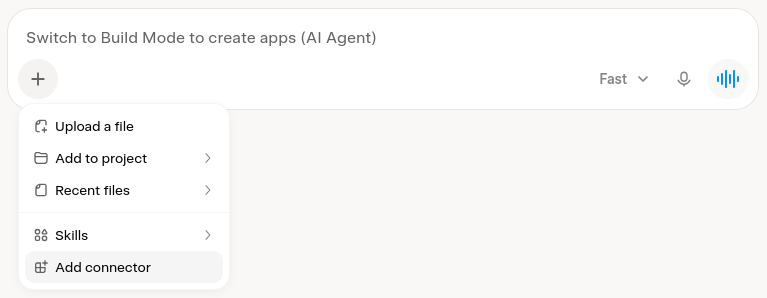
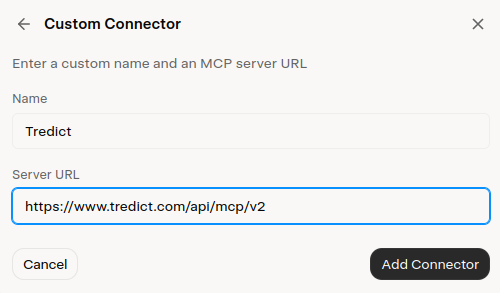
This opens the dialog
"Custom Connector". Fill in the two fields as follows, then click "Add Connector".Name: Tredict
Server URL: https://www.tredict.com/api/mcp/v2
Grok now asks for the OAuth credentials. In the
"Client ID" field, enter the value grok and leave the "Client Secret" empty. Authorization Endpoint, Token Endpoint and Scopes are detected automatically by the server and don't need to be changed. Leave the "Token Auth Method" set to "none (PKCE only, recommended)".Client ID: grok
Client Secret: You can simply leave this field blank.
Token Auth Method: none (PKCE only, recommended)
"Save & Connect" to start the OAuth2 flow. You will be redirected to the Tredict authorisation page and, after successful authentication, back to Grok.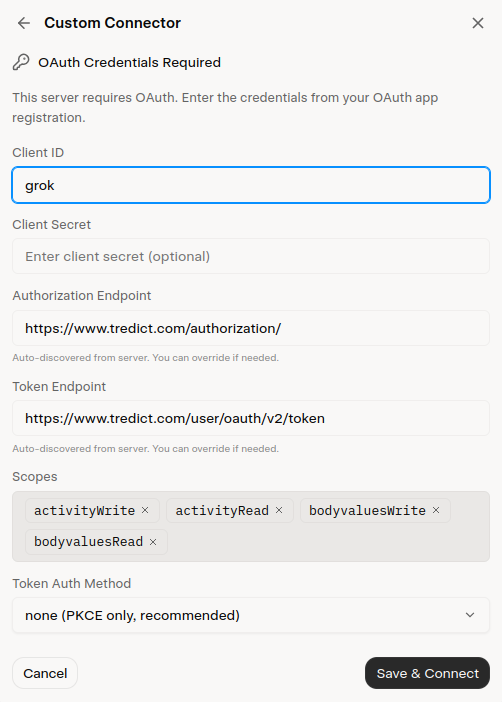
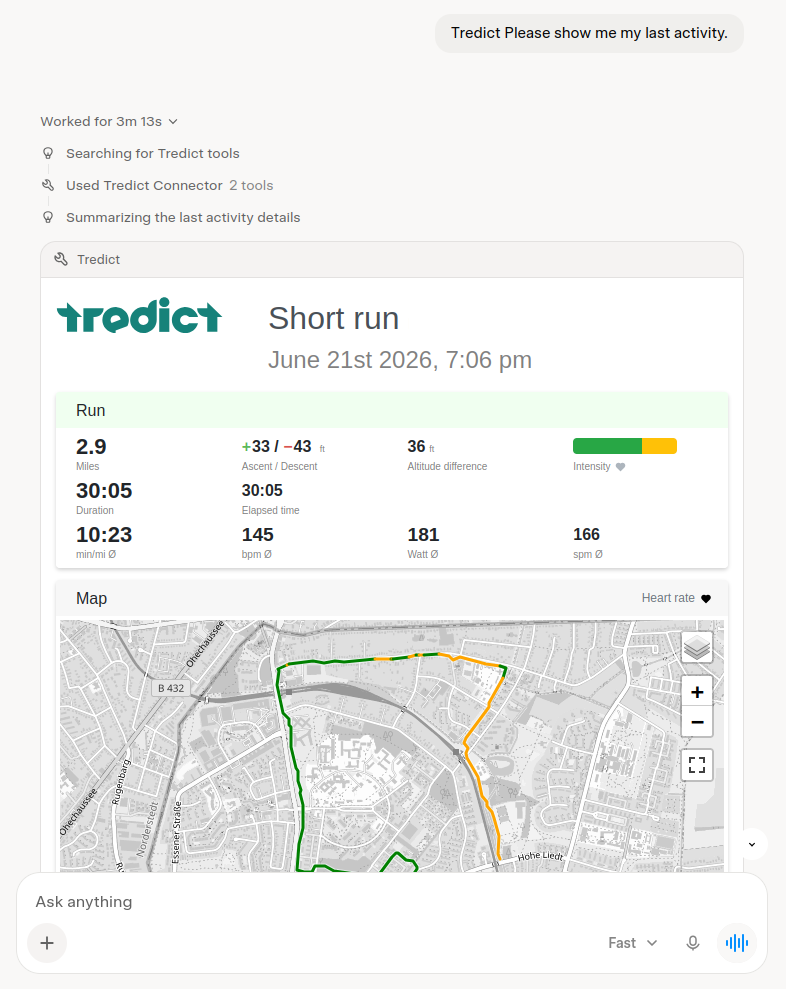
You are now connected. As soon as you ask Grok about your training data, it uses the ‘Tredict MCP Tools’ and shows the result in the interactive ‘Tredict MCP App’.
Example: Grok shows the interactive MCP app in the chat history
Now you can use the ‘Tredict MCP Tools’ directly in Grok, for example with these prompts.
"Analyse my training history and determine my functional threshold power (FTP) for cycling."
"Show me my best training session from last month."
Create training plans and workouts that sync automatically to your watch
Grok doesn't stop at analysis. Using the ‘Tredict MCP Tools’, Grok creates structured workouts and complete training plans directly in Tredict, for example based on an activity you've already completed or matched to your current fitness level.
If you have connected your Garmin watch to Tredict, for instance, Tredict automatically transfers the workouts and training plans created by Grok to your watch. So you plan in the chat with Grok and find the session ready on your Garmin device for your next workout.
"Take a close look at yesterday's interval training and use it to create a new structured workout for me in a reusable training plan in Tredict."