Install Tredict on iPhone or iPad
FAQ
-
Devices and Connections
- Which recording devices and services are supported?
- Export a planned workout to my Garmin device
- What is the difference between an automatically uploaded scheduled workout and a workout FIT file?
- Apple Watch with Watchletic - Connect and synchronise
- Garmin Connect - How to connect and synchronize my device?
- Suunto - How to connect and synchronize my watch?
- Polar Flow - How to connect and synchronize my watch?
- Coros - How to connect and synchronize my watch?
- Wahoo - Connect and synchronize
- Hammerhead - Connect and synchronize
- icTrainer - Using the Tredict training plan with the roller trainer
- Concept2 - Connect and synchronise
- Oura Ring - Connect and synchronise
- Dropbox - Automatically sync training files with and from Tredict
- Zwift - Automatically synchronise planned and completed workouts
- Rouvy - Automatically synchronise planned and completed workouts
- Personal API - Connect your own scripts or personal applications
- Tredict API - Connect your platform or application
- Model Context Protocol and AI integration
- App, Browser and Platforms
- General
-
Training
- How to unlink a pre-planned workout?
- How to fix corrupt workout data?
- Correct a faulty recorded swim stroke
- Can I change the date and time of my workout?
- Can the laps of an activity be calculated manually?
- Can I display a run without the walking breaks?
- Why is the date of my virtual training in a different time zone?
- Series chart for distance intervals without pace
- Supported sports
- Calendar and Training Overview
- Coaching and Athlete Connection
- Training plans
- Evaluation
- Zones
Tredict can be installed as an app directly via Safari on iOS devices, without any App Store.
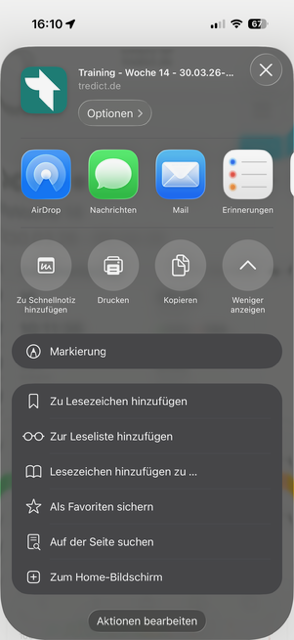 The iOS share menu with the "Add to Home Screen" option.
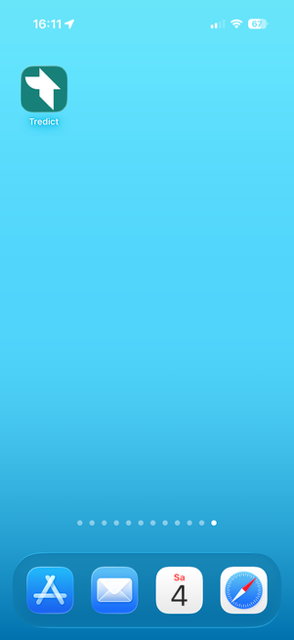 Tredict as an app icon on the home screen.
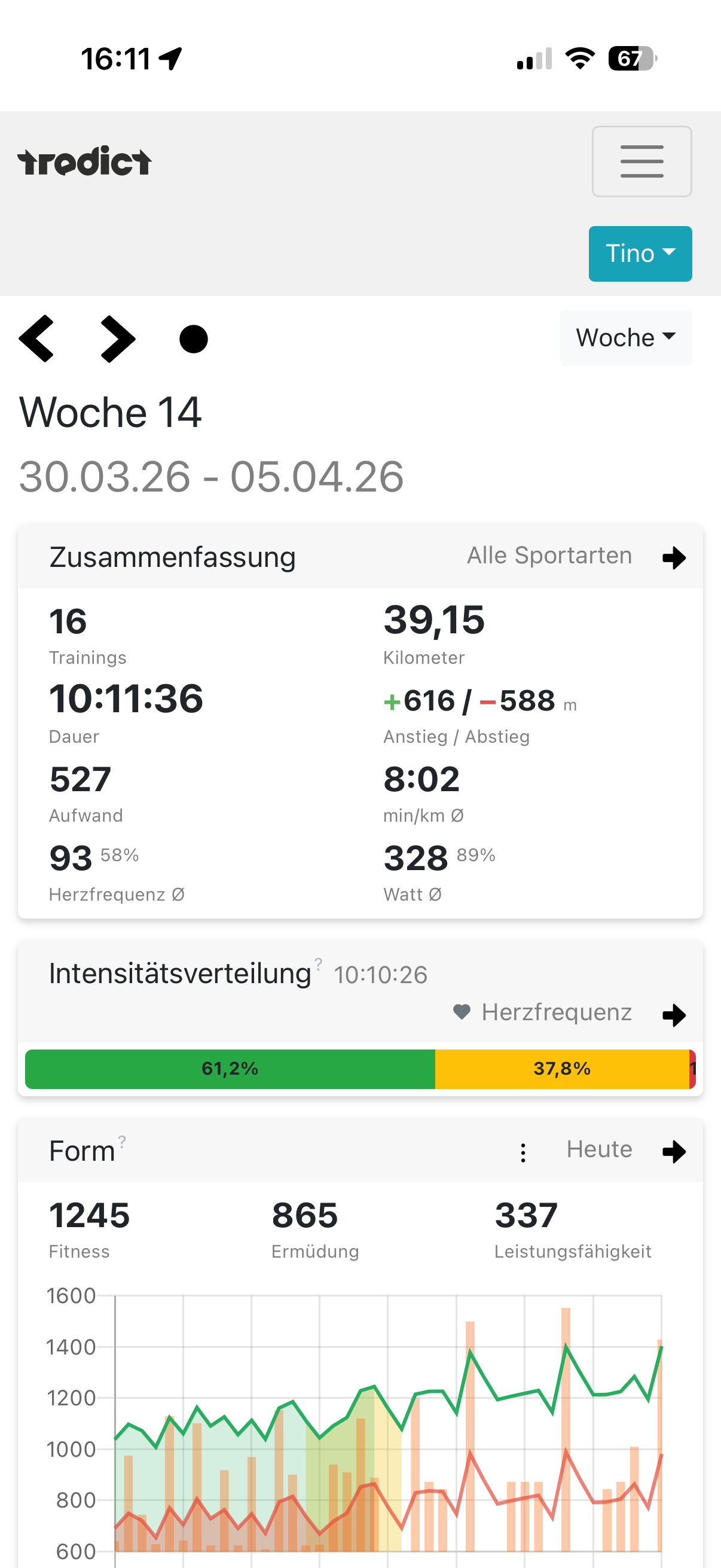 Tredict as an installed app on iPhone.
Tredict is an installable web app (PWA). This means you can save Tredict directly from your browser to your home screen, the browser address bar disappears, and you can use Tredict just like a regular iOS app. The features are identical to the web version, but after installation Tredict is better integrated on your device and accessible directly from your home screen.
How to install Tredict on your iPhone or iPad
- Open Safari and go to tredict.com.
- Tap the share icon in the bottom menu bar (square with an upward-pointing arrow).
- Scroll down in the list of options and tap "Add to Home Screen".
- Optionally, you can enter a name for the shortcut.
- Confirm by tapping "Add" in the top right corner.
Tredict now appears as an app icon on your home screen.
The great advantage is that you stay logged in and can access your account directly, just like with a native app.
The Safari address bar is no longer visible either.
Important: Installation only works via Safari. Other browsers such as Chrome or Firefox on iOS do not support this feature.
Next question:Install Tredict on Windows
Previous question:Install Tredict on Android
Overview:View all questions