Connect ChatGPT with Tredict
FAQ
-
Devices and Connections
- Which recording devices and services are supported?
- Export a planned workout to my Garmin device
- What is the difference between an automatically uploaded scheduled workout and a workout FIT file?
- Apple Watch with Watchletic - Connect and synchronise
- Garmin Connect - How to connect and synchronize my device?
- Suunto - How to connect and synchronize my watch?
- Polar Flow - How to connect and synchronize my watch?
- Coros - How to connect and synchronize my watch?
- Wahoo - Connect and synchronize
- Hammerhead - Connect and synchronize
- icTrainer - Using the Tredict training plan with the roller trainer
- Concept2 - Connect and synchronise
- Oura Ring - Connect and synchronise
- Dropbox - Automatically sync training files with and from Tredict
- Zwift - Automatically synchronise planned and completed workouts
- Rouvy - Automatically synchronise planned and completed workouts
- Personal API - Connect your own scripts or personal applications
- Tredict API - Connect your platform or application
- Model Context Protocol and AI integration
- App, Browser and Platforms
- General
-
Training
- How to unlink a pre-planned workout?
- How to fix corrupt workout data?
- Correct a faulty recorded swim stroke
- Can I change the date and time of my workout?
- Can the laps of an activity be calculated manually?
- Can I display a run without the walking breaks?
- Why is the date of my virtual training in a different time zone?
- Series chart for distance intervals without pace
- Supported sports
- Calendar and Training Overview
- Coaching and Athlete Connection
- Training plans
- Evaluation
- Zones
Official Tredict ChatGPT App
Install the official Tredict ChatGPT App directly in ChatGPT and get started straight away. The app also works with a free ChatGPT account.
Install the Tredict ChatGPT app
Once it’s installed, you can get started straight away and analyse your activities, edit activity descriptions, create structured workouts and, of course, do a whole lot more.
In the ChatGPT input field, you can select Tredict using the ‘Plus button’ or simply address ChatGPT with ‘@tredict’.
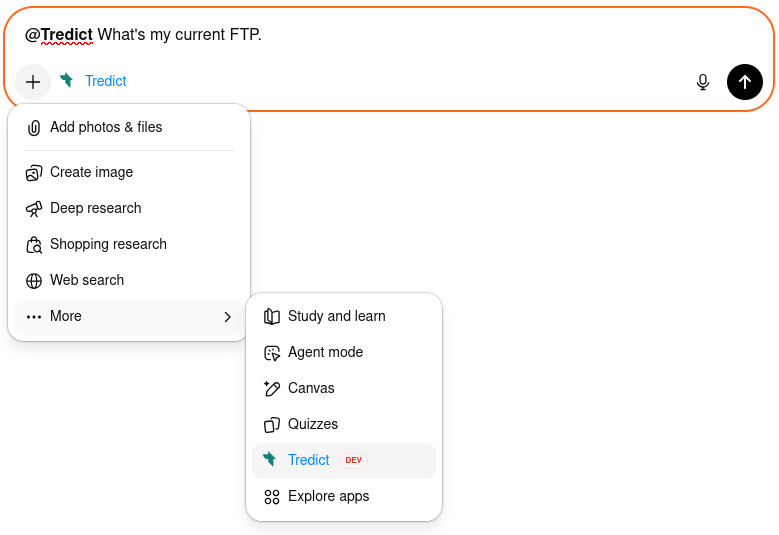
Example prompts for ChatGPT
You can now use ‘Tredict MCP Tools’ directly in ChatGPT, for example using these prompts.
"Show me my best training session from last month."
"Find training sessions without good titles, analyse them, and set better titles and descriptions in Tredict."
Example: ChatGPT displays the interactive MCP app for completed training sessions.
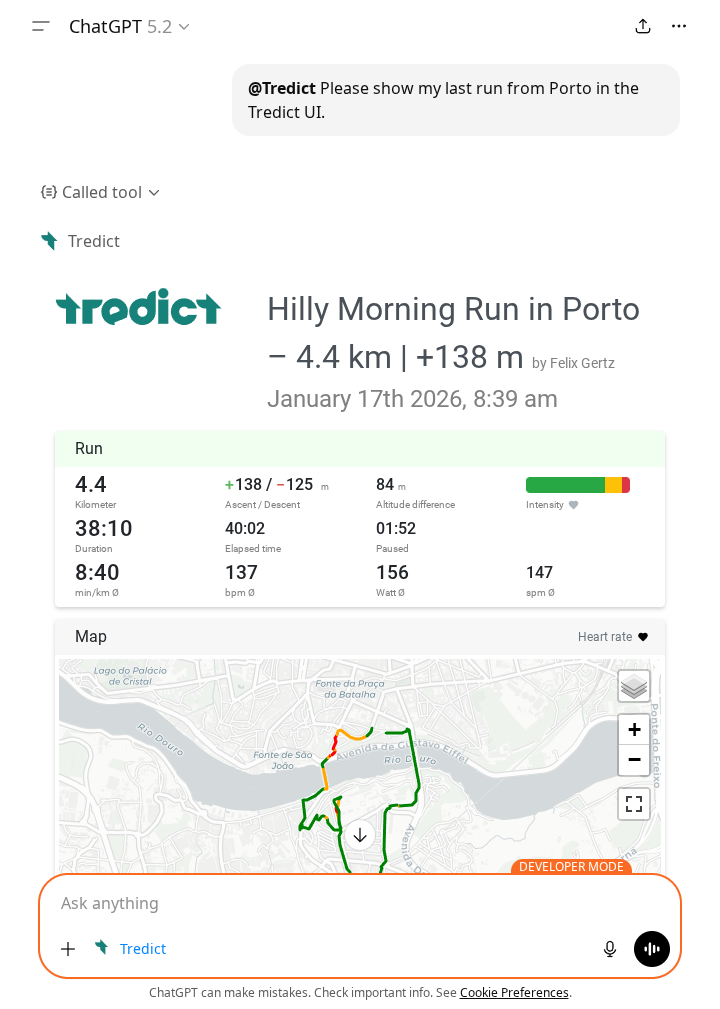
You’ll also find here some sample prompts using Tredict GPTs.
With the Tredict ChatGPT App, you have access to tools and data such as activity details, series data, activity segments, training plan creation, HRV data, sleep data, capacity values and much more.
Alternative for power users: Setting up the Tredict MCP Server manually
With the manually added Tredict MCP Server, you’ll always have access to the latest tools and updates to the MCP Server.
Manually adding MCP servers to ChatGPT is only possible with a paid ChatGPT account.
Go to "Settings -> Apps" and then click on "Advanced settings".
Activate the "developer mode".
Go back to "Apps" and click on the "Create app" Button.
A modal window with a new app opens.
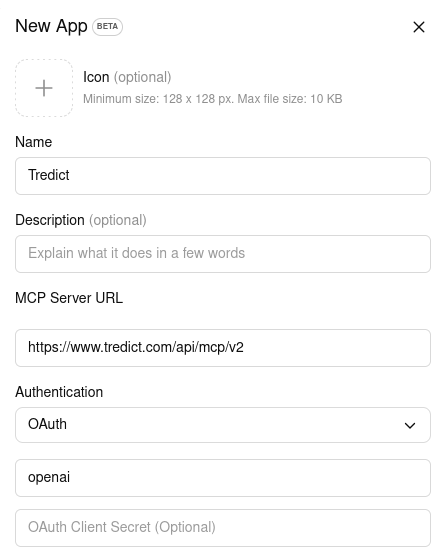
Please fill in the fields as follows.
Name: Tredict
MCP Server URL: https://www.tredict.com/api/mcp/v2
Authentication: OAuth
OAuth Client ID: openai
OAuth Client Secret: You can simply leave this field blank.
"Create" to start the OAuth2 flow. You will be redirected to the Tredict authorisation page and, after successful authentication, back to the ChatGPT interface.