Connect Perplexity with Tredict
FAQ
-
Devices and Connections
- Which recording devices and services are supported?
- Export a planned workout to my Garmin device
- What is the difference between an automatically uploaded scheduled workout and a workout FIT file?
- Apple Watch with Watchletic - Connect and synchronise
- Garmin Connect - How to connect and synchronize my device?
- Suunto - How to connect and synchronize my watch?
- Polar Flow - How to connect and synchronize my watch?
- Coros - How to connect and synchronize my watch?
- Wahoo - Connect and synchronize
- Hammerhead - Connect and synchronize
- icTrainer - Using the Tredict training plan with the roller trainer
- Concept2 - Connect and synchronise
- Oura Ring - Connect and synchronise
- Dropbox - Automatically sync training files with and from Tredict
- Zwift - Automatically synchronise planned and completed workouts
- Rouvy - Automatically synchronise planned and completed workouts
- Personal API - Connect your own scripts or personal applications
- Tredict API - Connect your platform or application
- Model Context Protocol and AI integration
- App, Browser and Platforms
- General
-
Training
- How to unlink a pre-planned workout?
- How to fix corrupt workout data?
- Correct a faulty recorded swim stroke
- Can I change the date and time of my workout?
- Can the laps of an activity be calculated manually?
- Can I display a run without the walking breaks?
- Why is the date of my virtual training in a different time zone?
- Series chart for distance intervals without pace
- Supported sports
- Calendar and Training Overview
- Coaching and Athlete Connection
- Training plans
- Evaluation
- Zones
LLMs are artificial systems that make mistakes and are no substitute for a trainer or your own mind.
Adding MCP connectors in Perplexity is only possible with a Perplexity Pro account or higher.
Follow these steps to connect Perplexity to the "Tredict MCP Server".
Add the Tredict connector to Perplexity
Go to the Perplexity Connectors page: Perplexity Connectors.Alternatively, you can click on the
+ icon in the chat, select ${undefined} and open ${undefined}.Click on the
"+ Custom connector" button in the top right-hand corner.Click on
"Advanced" in the form and select OAuth as the authentication method. Fill in the fields as follows:Name: Tredict
MCP server URL: https://www.tredict.com/api/mcp/v2
Client ID: perplexity
Client Secret: perplexity
It is also a good idea to upload the Tredict symbol as a connector icon:
https://www.tredict.com/tredict-symbol_invers-512px.png
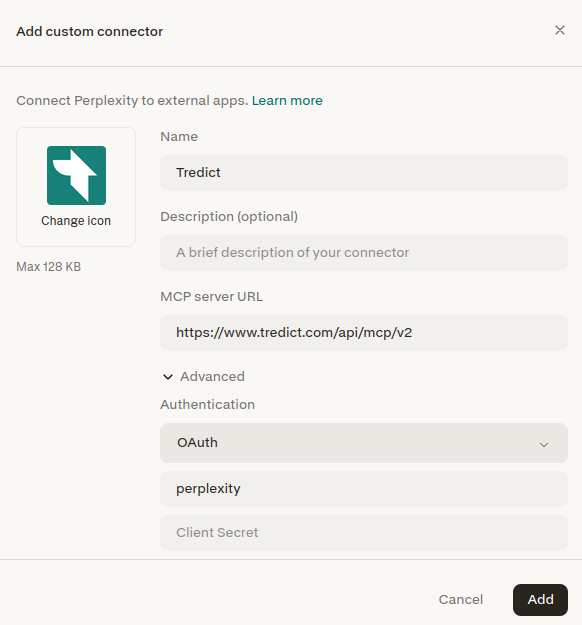
Connect the Tredict connector
Once you have added the Tredict connector, you will find it listed among the available connectors. Click on the Tredict connector to connect it.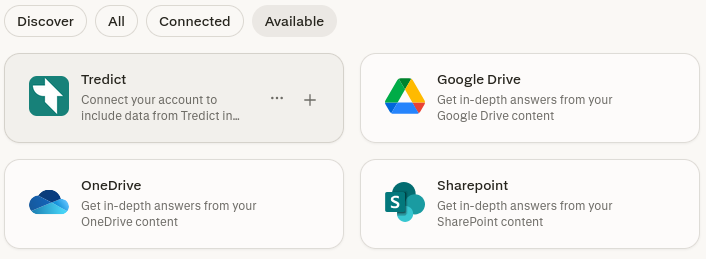
Click on ${undefined} to start the OAuth2 flow. You will be redirected to the Tredict authorisation page and, once you have successfully authenticated, back to Perplexity.
Using Tredict in Perplexity
You can now give instructions and prompts in the chat by typing@tredict, e.g.: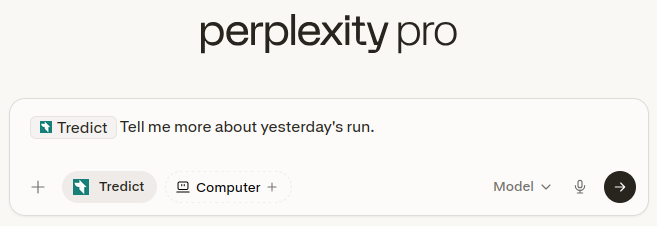
@tredict How did my training go yesterday?Perplexity then selects the best possible model. An answer might look like this:
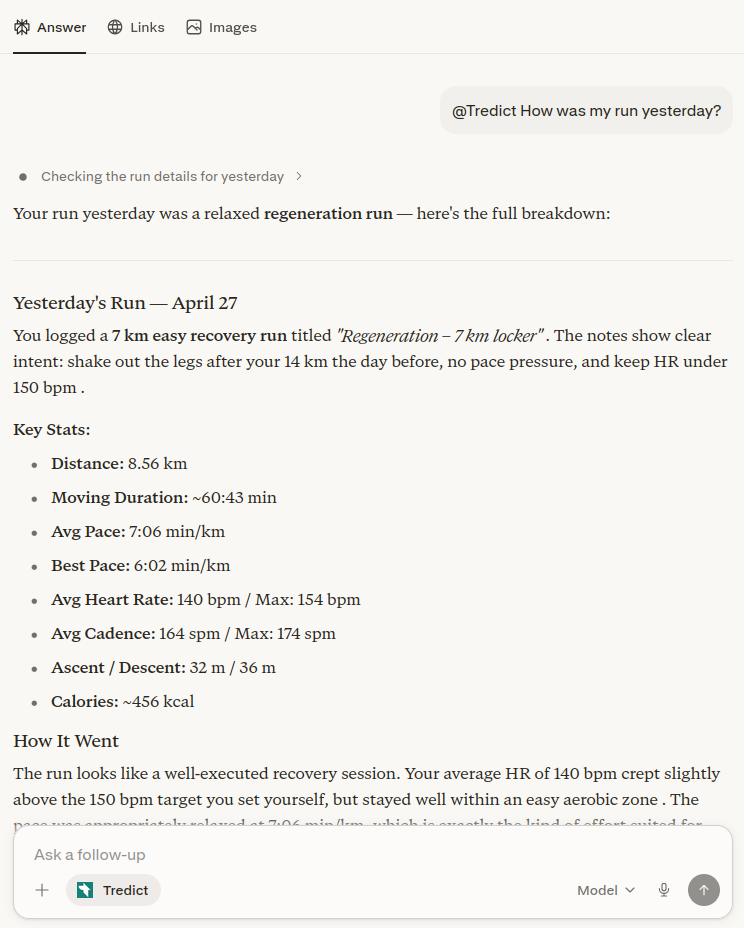
Example prompts for Perplexity
You can now use ‘Tredict MCP Tools’ directly in Perplexity, for example with these prompts:
@tredict ‘How did my training go yesterday?’@tredict "Analyse my training history and determine my functional threshold power (FTP) for cycling."@tredict "Create a 4-week running training plan in Tredict. Analyse my performance and training history beforehand so that you can get an idea of my fitness level."@tredict "Show me my best training session from last month."Find detailed descriptions of the tools, prompts and resources of the "Tredict MCP Server" here: Tredict MCP Server Documentation.
Note: Unfortunately, Perplexity does not support interactive MCP apps in the chat. This means that visual elements such as activity cards or interactive displays, which Tredict can show directly in the chat, are not available in Perplexity. Anyone who would like such visual feedback can use ChatGPT or Claude.ai instead.
Next question:Connect Mistral Vibe with Tredict
Previous question:Connect Codex with Tredict
Overview:View all questions