Dropbox - Automatically sync training files with and from Tredict
FAQ
-
Devices and Connections
- Which recording devices and services are supported?
- Export a planned workout to my Garmin device
- What is the difference between an automatically uploaded scheduled workout and a workout FIT file?
- Apple Watch with Watchletic - Connect and synchronise
- Garmin Connect - How to connect and synchronize my device?
- Suunto - How to connect and synchronize my watch?
- Polar Flow - How to connect and synchronize my watch?
- Coros - How to connect and synchronize my watch?
- Wahoo - Connect and synchronize
- Hammerhead - Connect and synchronize
- icTrainer - Using the Tredict training plan with the roller trainer
- Concept2 - Connect and synchronise
- Oura Ring - Connect and synchronise
- Dropbox - Automatically sync training files with and from Tredict
- Zwift - Automatically synchronise planned and completed workouts
- Rouvy - Automatically synchronise planned and completed workouts
- Personal API - Connect your own scripts or personal applications
- Tredict API - Connect your platform or application
- Model Context Protocol and AI integration
- App, Browser and Platforms
- General
-
Training
- How to unlink a pre-planned workout?
- How to fix corrupt workout data?
- Correct a faulty recorded swim stroke
- Can I change the date and time of my workout?
- Can the laps of an activity be calculated manually?
- Can I display a run without the walking breaks?
- Why is the date of my virtual training in a different time zone?
- Series chart for distance intervals without pace
- Supported sports
- Calendar and Training Overview
- Coaching and Athlete Connection
- Training plans
- Evaluation
- Zones
Tredict's Dropbox integration is so flexible that you can easily import completed workouts from a Dropbox folder into Tredict and export your planned and scheduled workouts to Dropbox as structured workouts. This way, any third-party service that can write to or read from your Dropbox can be connected to Tredict.
This allows you to sync files between your computer and Dropbox.
Download Dropbox Desktop
Then connect Tredict to your Dropbox so that all transfer functions appear in the Tredict settings.
To do this, click on the Dropbox icon under 'Settings -> Services'.
In Tredict, go to the 'Settings -> Services' category.
Enable the automatic export of scheduled workouts to Dropbox.
For now, you can leave the destination folder ‘/tredict-planned’ as is.
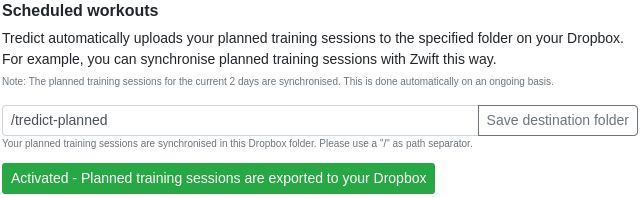
In Tredict, go to the 'Settings -> Services' category.
Enable automatic import of activities from Dropbox there.
For now, you can leave the import folder ‘/’ as is; this will scan your entire Dropbox, including all subfolders, for .fit, .fit.gz, .tcx, and .tcx.gz files.
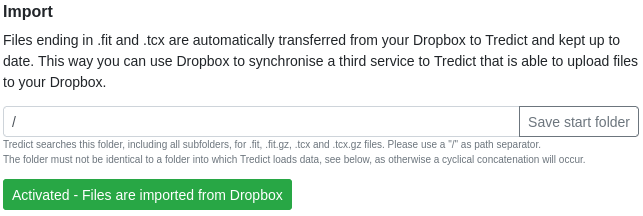
Now your completed workouts will be automatically synced to Tredict!
Connect Tredict to your Dropbox
First install Dropbox Desktop on your computer if you have not already done so.This allows you to sync files between your computer and Dropbox.
Download Dropbox Desktop
Then connect Tredict to your Dropbox so that all transfer functions appear in the Tredict settings.
To do this, click on the Dropbox icon under 'Settings -> Services'.
Export scheduled workouts to Dropbox
If needed, Tredict will send your pre-planned structured workouts as FIT files to the specified Dropbox folder.
This automatically syncs the last 2 days and deletes any scheduled workouts older than 4 days from Dropbox.
This way, your Dropbox folder will always be neat and tidy, and you won't lose track of things.
In Tredict, go to the 'Settings -> Services' category.
Enable the automatic export of scheduled workouts to Dropbox.
For now, you can leave the destination folder ‘/tredict-planned’ as is.
Import executed activities from Dropbox
Files ending in .fit or .tcx are automatically synced from your Dropbox to Tredict and kept up to date.
This way, you can use Dropbox to sync any third-party service with Tredict that is capable of uploading files to your Dropbox. For example, Bryton or TrainerRoad, which send your activities to Dropbox, or Intervals.icu, which can both receive and send activities.
In Tredict, go to the 'Settings -> Services' category.
Enable automatic import of activities from Dropbox there.
For now, you can leave the import folder ‘/’ as is; this will scan your entire Dropbox, including all subfolders, for .fit, .fit.gz, .tcx, and .tcx.gz files.
Now your completed workouts will be automatically synced to Tredict!
Next question:Zwift - Automatically synchronise planned and completed workouts
Previous question:Oura Ring - Connect and synchronise
Overview:View all questions